

Best Artificial Intelligence Apps for Android in 2026
Artificial intelligence is no longer something distant or “only for experts.” Today, it’s embedded in your phone, helping you write better, edit photos, study, create content, or simply save time on repetitive tasks.
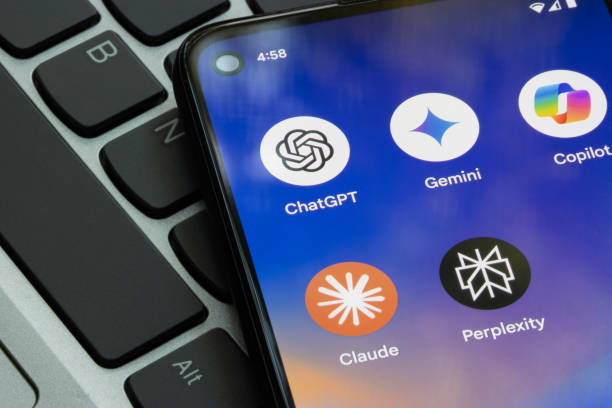
If you use Android daily and want to get the most out of it, here are the best AI apps for Android , explained without jargon, with real-world examples and practical tips based on everyday use.
No exaggerated promises. This is about apps that actually work.
What will you learn in this tutorial?
- Which artificial intelligence apps are worth installing on Android
- What is each one used for and in what situations do they shine?
- How to set them up from scratch without complicating things
- Common mistakes I see all the time and how to avoid them
- Recommended settings for better everyday use
The idea is that you end up knowing which one to use depending on your needs , not just installing them because they’re trendy.
Prerequisites
Before you begin, check this out to avoid headaches:
- Android device with at least 4 GB of RAM (8 GB recommended if you use multiple apps at once)
- Android 9 or higher (some advanced features require Android 11+)
- Stable internet connection (most apps use the cloud)
- Active Google account
- Basic permissions: storage, microphone or camera depending on the app
Real tip: If you have an older mid-range phone, don’t open multiple AI apps at the same time. You’ll notice a drop in performance.
Detailed step-by-step guide to using AI apps on Android
ChatGPT – Text, ideas and daily help
Ideal for writing messages, correcting texts, studying, or resolving quick doubts.
How to get started right:
- Install it from Google Play
- Sign in with Google
- Go to settings and enable history only if you want personalized replies
- Use clear and direct questions, as if you were talking to someone
Real-world use: writing emails, social media ideas, explaining difficult topics in simple words.
Google Gemini – AI integrated into the Google ecosystem
It works great if you use Gmail, Drive, or Google Photos.
Practical recommendation:
Activate Gemini from your Google account and use it to summarize long emails or create quick drafts.
Note: It consumes more battery if you leave it active all the time.
Remini – Improves old or blurry photos
Perfect for old photos, profiles, or pixelated images.
Royal tip:
Don’t apply the maximum enhancement to portraits. It can sometimes make the skin look unnatural.
Lensa – Creative editing with AI
Widely used for portraits, backgrounds and artistic styles.
Helpful tip:
It works best with well-lit photos. Dark selfies often produce strange results.
Grammarly – Write better in any app
It not only corrects errors, it also improves the tone.
Daily use: WhatsApp, Gmail, notes, social media.
Common warning: Check the active language; it is usually set to English by default.
Common mistakes and how to avoid them
- ❌ Use vague prompts like “do better”
✔️ Be specific: “correct the text and make it more informal” - ❌ Don’t blindly trust AI
✔️ Always check the result, especially for important texts - ❌ Thinking they all work offline
✔️ Almost all of them need a stable internet connection - ❌ Use them all at the same time
✔️ Open only the one you need to avoid slowdowns
Practical tips and recommended settings
- Activate dark mode to save battery
- Check permissions every month; many apps ask for more than necessary.
- Use one AI app per task, not one for everything.
- Save prompts that work for you, it saves time
- If you notice it getting hot, close the app and reopen it.
I say this from experience: less is more when it comes to AI on Android.
Frequently Asked Questions (FAQs)
Do these apps replace a person?
No. They help a lot, but they still need human judgment.
Do they work on cheap cell phones?
Yes, but with limits. On low-end devices, it’s best to use only basic functions.
Do they use a lot of data?
It depends on the usage. Text uses little bandwidth, photo editing uses considerably more.
Are they safe?
Generally yes, but avoid uploading sensitive or private information.
Final Conclusion
Ultimately, artificial intelligence on Android isn’t magic; it’s a tool. Used correctly, it saves time, improves results, and makes your day easier. Misused, it just takes up space.
Start with one or two apps, adjust them to how you use your phone, and experiment. That’s when you’ll really see the difference.
If you’d like, in another article I can help you choose the best AI app based on your phone type or your daily activities 😉